
In this article
Product updates
Avo speaks Figma now
Introducing the Avo Figma integration for Journeys
Picture this: your designer (agent) just dropped a new flow in Figma. You want to plan tracking for it on Avo, but the screens are stuck in Figma. So you start the chore. Multi-select the frames you want, export PNGs, save locally, switch to Avo, find the files again, drag and drop them in, reorder them based on where they sat in the design file, then connect the journey steps. You haven't started the actual tracking work yet.
Today we're shipping the Avo Figma integration. Paste a Figma link into a journey, and the screens land where they belong. You get to start with the part that matters.
And we're not done. AI-assisted journey design has already started landing in Avo, and there's more coming. Our MCP will bring the same workflow to the AI tools your team already uses. More on both soon.
Why we built Journeys, and why this changes things
For teams not using Avo Journeys, the first pass of data design still happens outside the tracking plan, in screenshots, FigJam boards, and scratch docs. PMs sketch the user flows but rarely write the specs themselves. Analysts translate those flows into events and properties by hand, becoming a bottleneck the whole team waits on. Engineers implement against descriptions, not the screens themselves. Three people, three versions of the picture, resulting in dashboards nobody fully trusts.
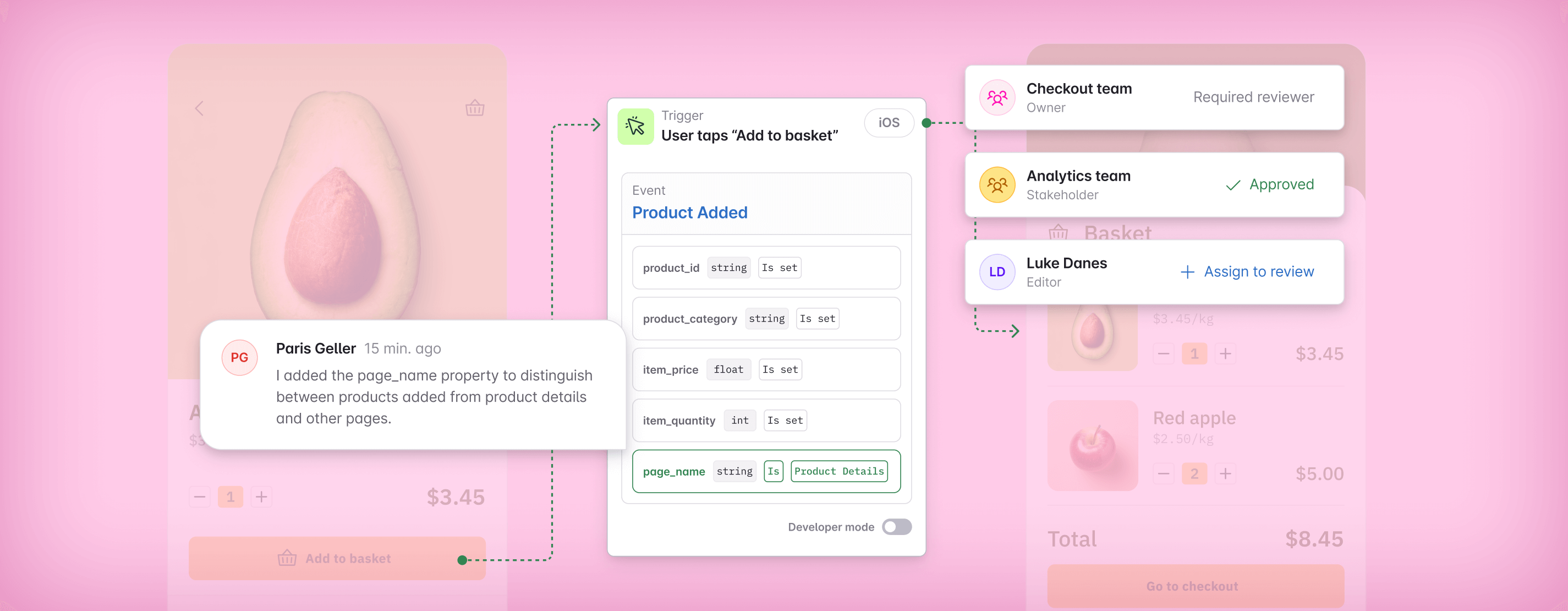
The fix is obvious in hindsight: design tracking on top of the actual screens. Use the design as the structure for the flow, attach tracking decisions to the moments that matter, and keep everyone looking at the same picture. That was the idea behind Journeys, which we launched last December. As one PM put it after using it:
"What's great about Journeys is you're really talking about the visual definition of what's going on. You stop describing flows in Slack and start pointing at them."
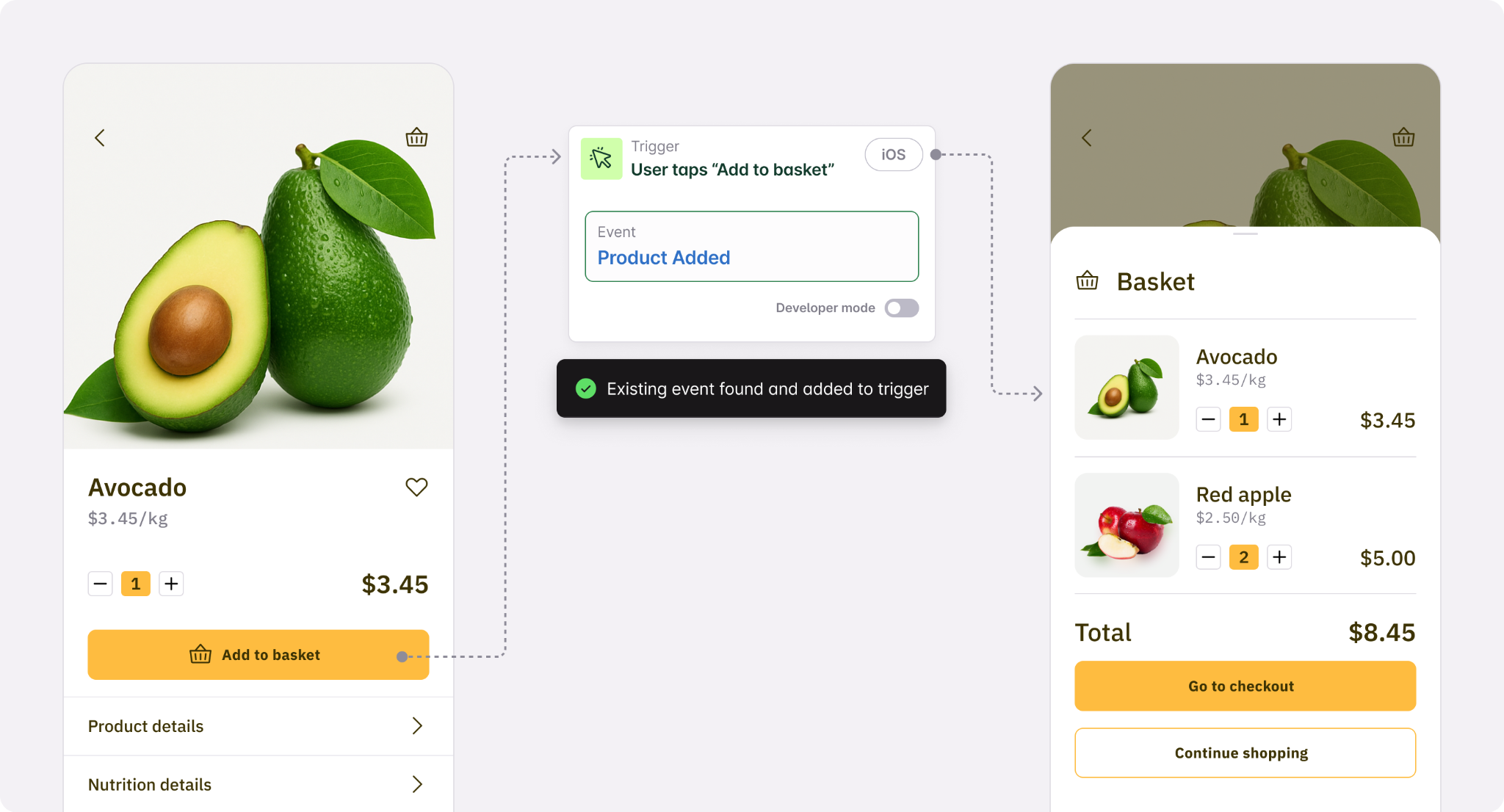
Journeys gave teams a way to plan, review, and implement tracking with the user flow visible the whole time. PMs could contribute. Engineers got specs tied to specific screens. Reviewers had context. Tracking design stopped feeling like a translation exercise.
But every one of those benefits came with a tax that teams paid up front, before the workflow could start paying back. Today's release takes that tax to zero, and Journeys stops being a workflow teams have to deliberately invest in.
The friction we couldn't ignore
Every journey started with somebody manually exporting screens from Figma, frame by frame, and rearranging them in Avo to match the original layout. We heard the same thing in conversation after conversation. Getting designs into Avo was too manual, with too many clicks. As one Product Manager put it:
"It takes a lot of time to basically add the design and then recreate the flow inside Avo."
Even when teams pushed through the import, the journey didn't stay current. A designer would update a frame, the journey wouldn't, and the screens in Avo turned into a snapshot from whenever someone last took the time to re-export. The Figma integration has been the most-requested improvement to Journeys since we shipped it.
How it actually feels to use
Here's the new flow. You're in Avo, starting a journey for a new feature. Instead of opening Figma in another tab to begin the export ritual, you switch to Figma, copy a link to a frame, section or page, and switch back to Avo.
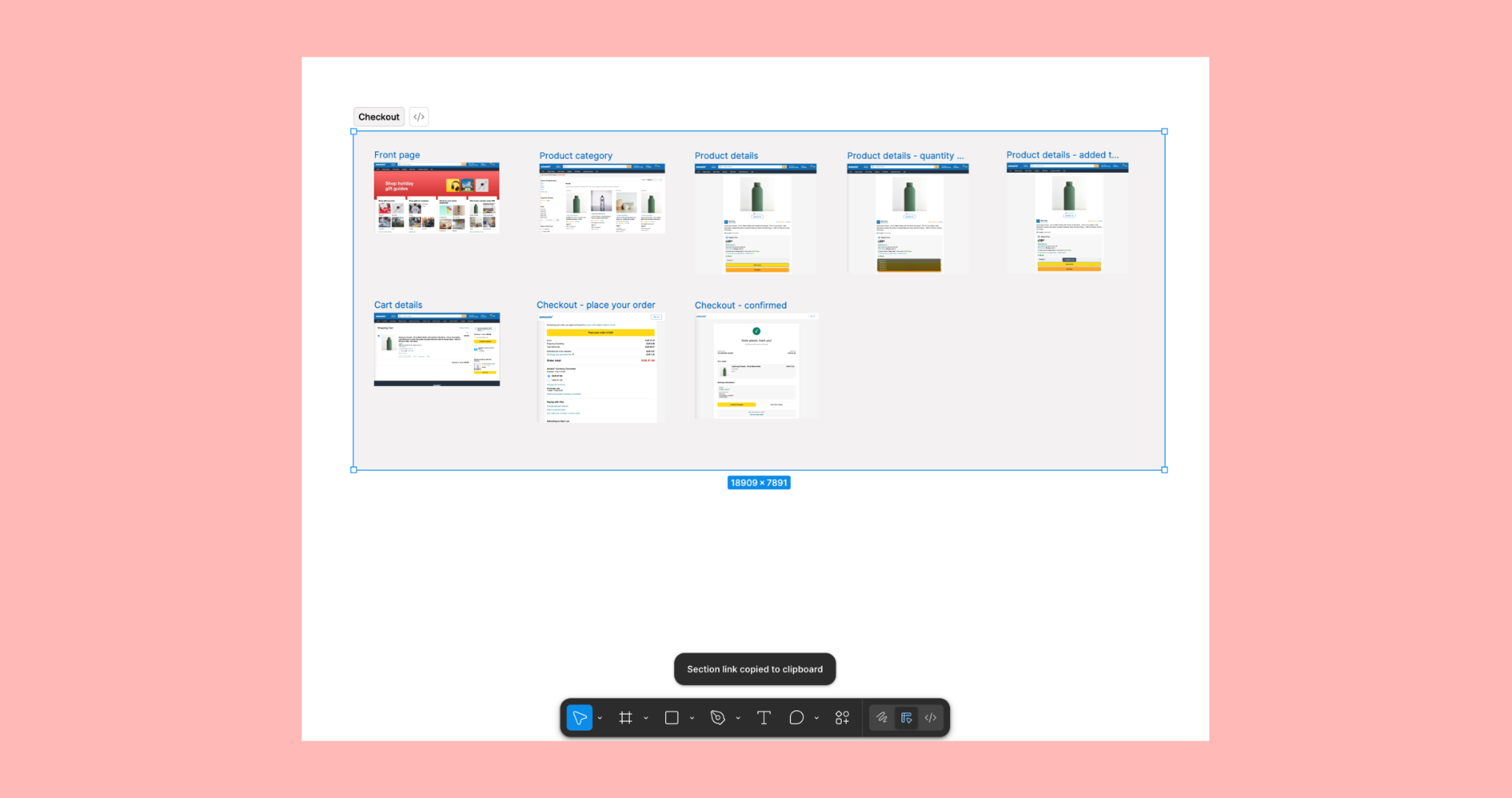
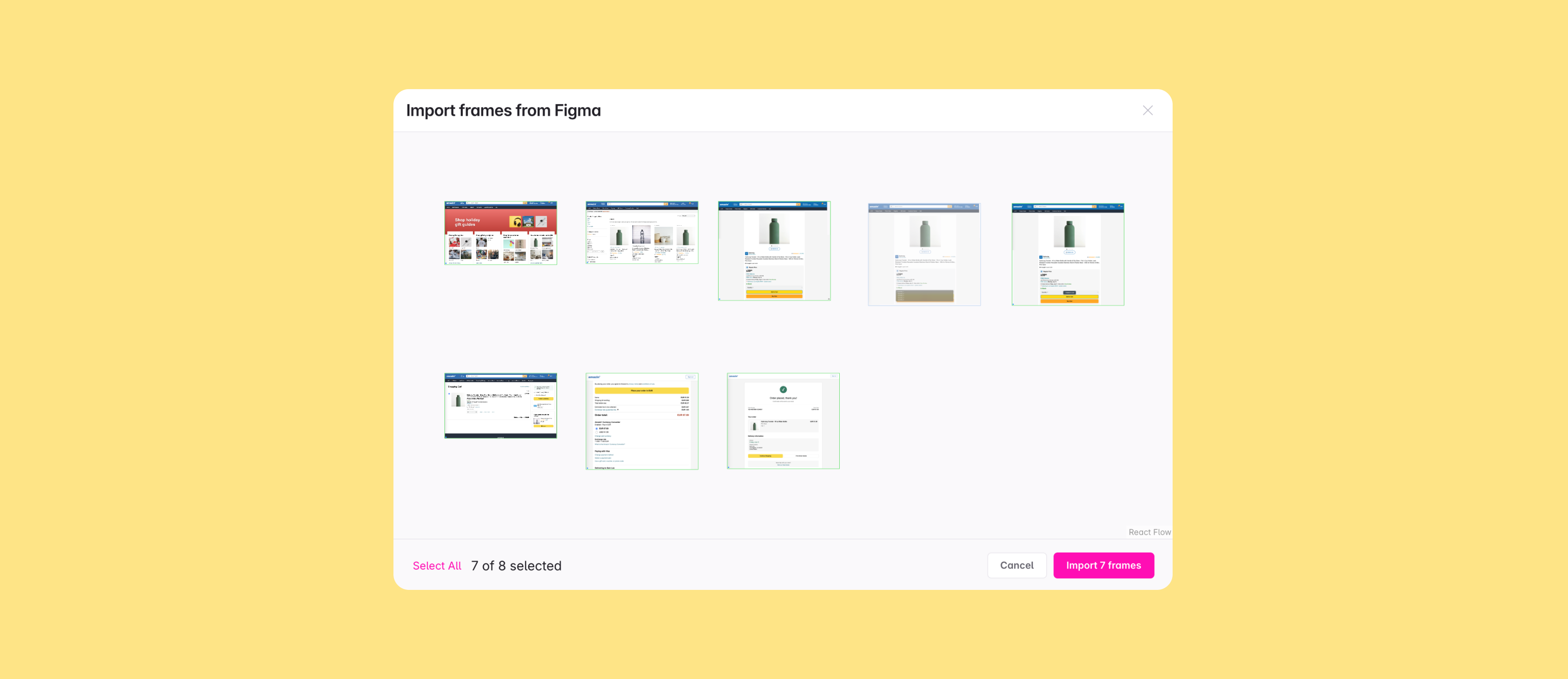
Paste anywhere on the canvas. The screens land in your journey, with their frame names as step titles, in their real layout, ready for the actual tracking work. A single frame link drops in as a step where you pasted it. Section and file links open a frame picker that mirrors your Figma canvas, with thumbnails arranged in the same spatial positions you laid them out in.

Pick the frames that matter for this journey, hit Import, and they arrive with the layout preserved. Frames that sat in the same row in Figma come in already connected, so the horizontal flow you drew in your design file shows up as a connected journey from the start.
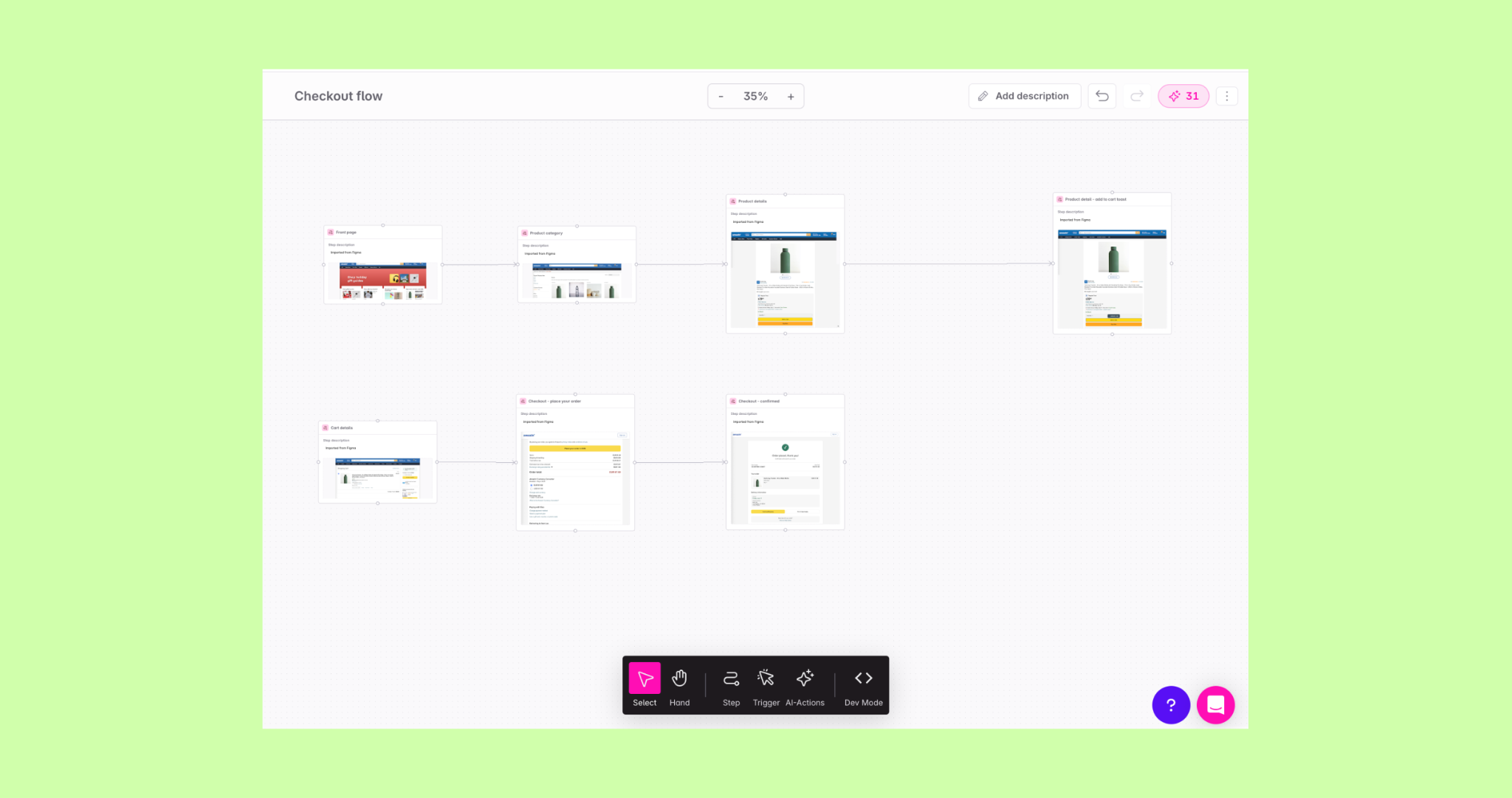
The part we find most quietly satisfying is what happens after the import. Every step keeps a link back to its original frame. Hover any step to jump straight to Figma, or hit Reload from Figma to pull the latest version when the design has moved on. Journeys stop being snapshots. They stay in step with the design file they came from.
What this unlocks
The Figma integration removes a chore. The bigger shift is what becomes possible when journeys are cheap to build and easy to keep current.
Designers and PMs start using Avo because the entry point is a Figma link they already had open, not a tracking plan they had to learn first. Reviewers see the screens designers are actually shipping. Engineers get code snippets tied to specific screens, with the design context still attached, so there's no ambiguity about which event fires where. The Plan, Review, Implement loop your team already runs keeps its shape. The piece that used to fall off the table (keeping the visual context in sync with reality) is taken care of.
How to get started
The Figma integration is available to all Avo customers at no additional cost. Connect Figma from Settings → Integrations → Figma and any teammate can start pasting links into journeys. The connection is a one-time setup. Read the docs for a walkthrough.
If you're new to Avo, this is a good moment to take a look. Journeys plus the Figma integration is the cleanest workflow we've built for designing analytics from the ground up, and you can sign up for free to try it on your own files.
If you're already using Avo and want help rolling it out, reach out at support@avo.app.
This is the first step in connecting your design tools to your tracking plan. There's more we want to do here. Tell us what we should build next.
Block Quote